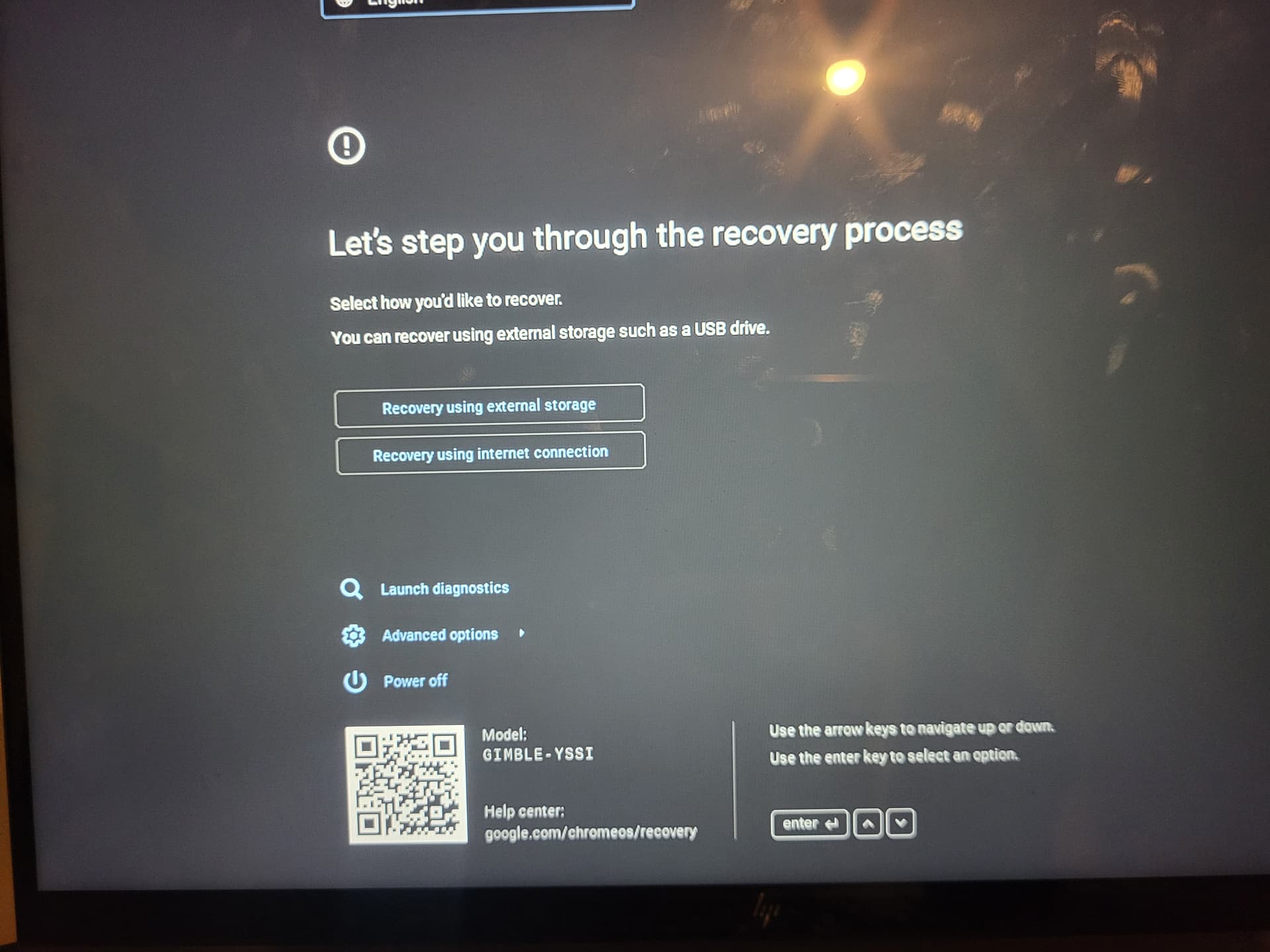
I’ve been reading online, and the classic solution is to install the recovery tool to download an updated ROM, or to download one beforehand and copy it to a USB drive.
However, when partitioning the disk to install Linux later, each time a partition was removed and added for Linux, Chrome OS would reset and adapt to the new, reduced space.
So my question is, since I don’t have access to fast internet to download ISOs, etc.
Is there any way, using the partitioning script, to delete the Linux partitions and have Chrome OS reclaim the entire disk space? @MrChromebox
I’ve been doing some tests and I’ve had a partial solution and a rather crazy error.
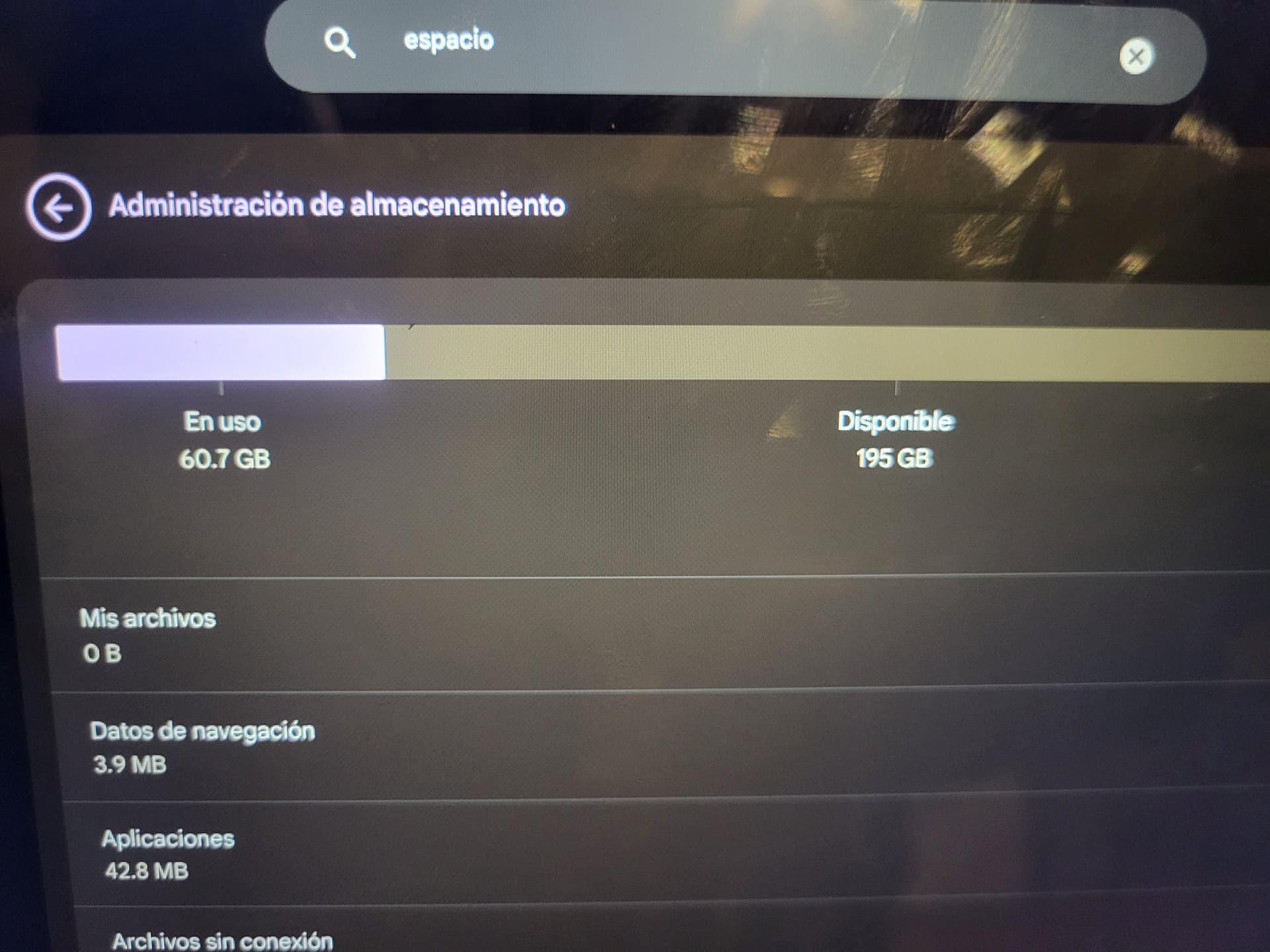
1 - I disabled developer mode on the device. When I accessed ChromeOS, the system storage usage showed 170GB. I think it was including the Linux partitions. My hard drive is only 260GB.
2 - I reactivated developer mode, in guest window I ran the script in console and it said that HW was Enabled, I clicked install corebot twice, it supposedly installed but it kept saying that hw was enabled.
3 - Once I had developer options enabled and accessed the internal drive through ChromeOS, it showed the correct space: 85 used, 171 free. I had already used up the entire disk 
4 - The problem occurs when I disable developer mode again, to return it to default settings. The PC fan makes noise and turns on, but the screen doesn’t. 
Now, the only way it sends video to the screen is when I force it to shut down and turn it on with Power + Esc + Refresh.
If you look, I can access the normal system by selecting the internal drive, but when I try to disable developer mode (or safe mode), the PC gets stuck in an infinite loop.
It turns on, turns off, turns on, turns off, but never displays a screen, just a black screen. If I re-enable developer mode, I can then access the Chrome system without problems, but with the annoying menu of selecting where to boot.