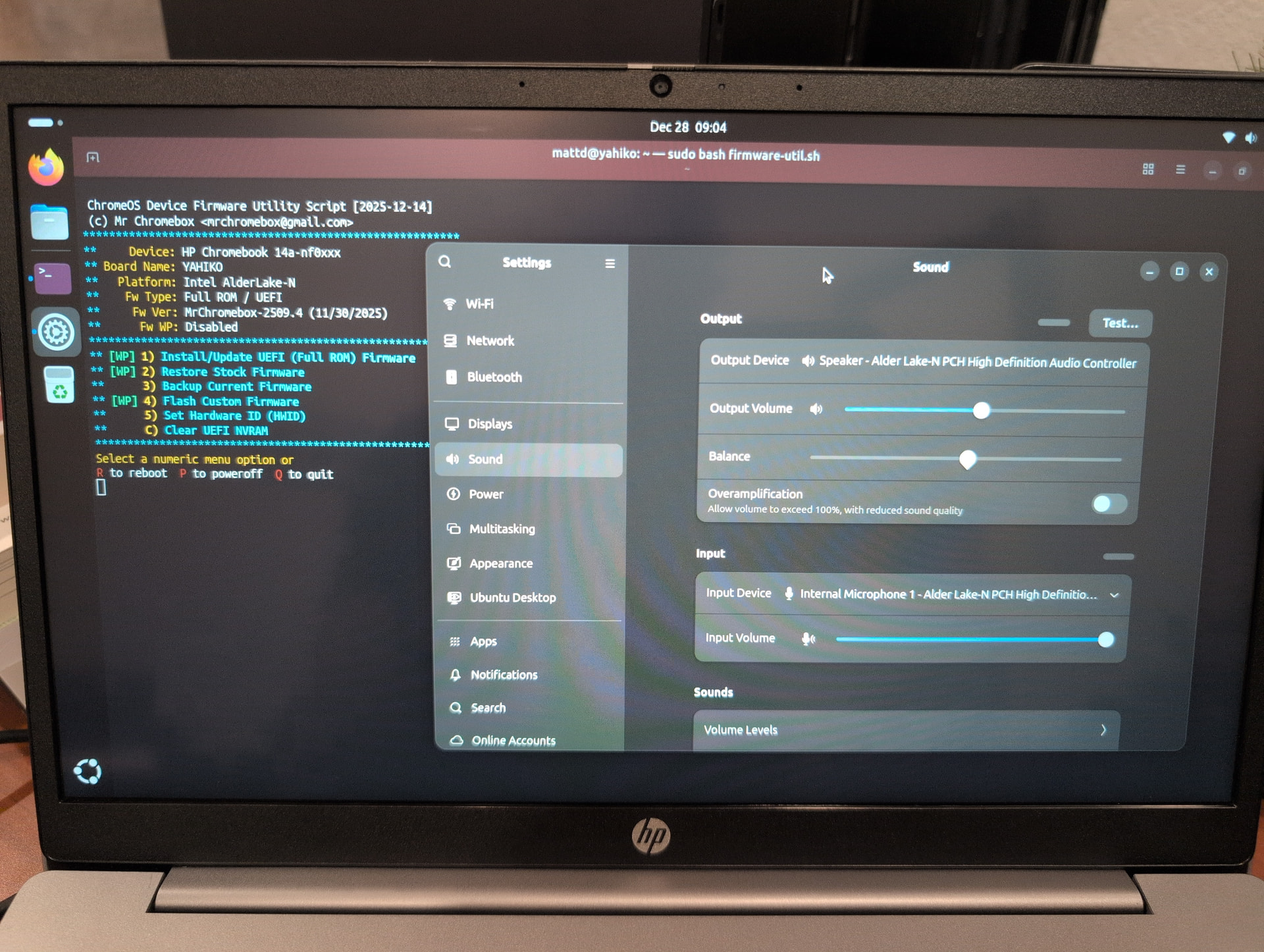
Things I have done:
- I have entered developer mode
- I have disconnected the battery.
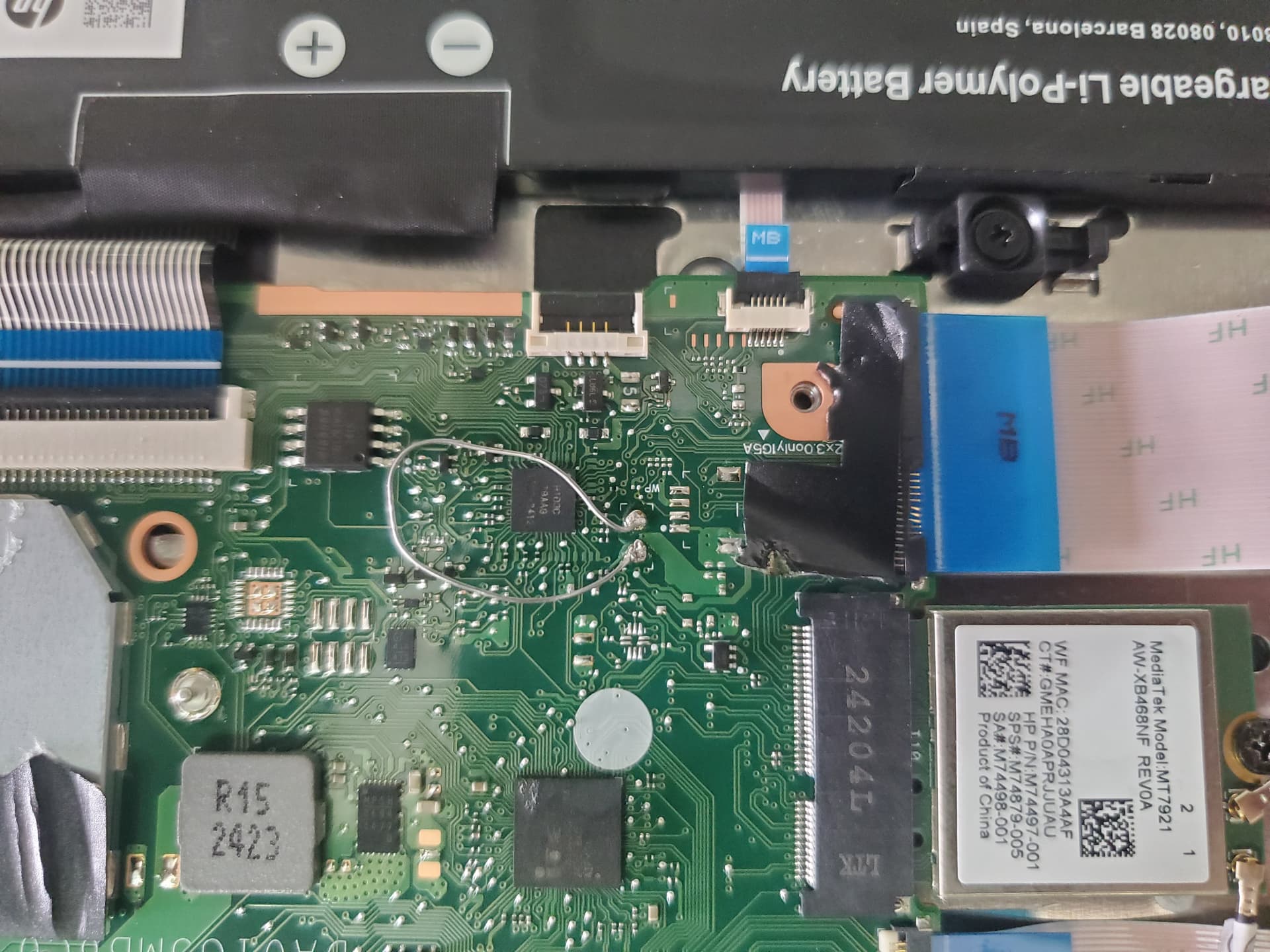
- I have bridged the jumper points by connecting them together using soldering lead.
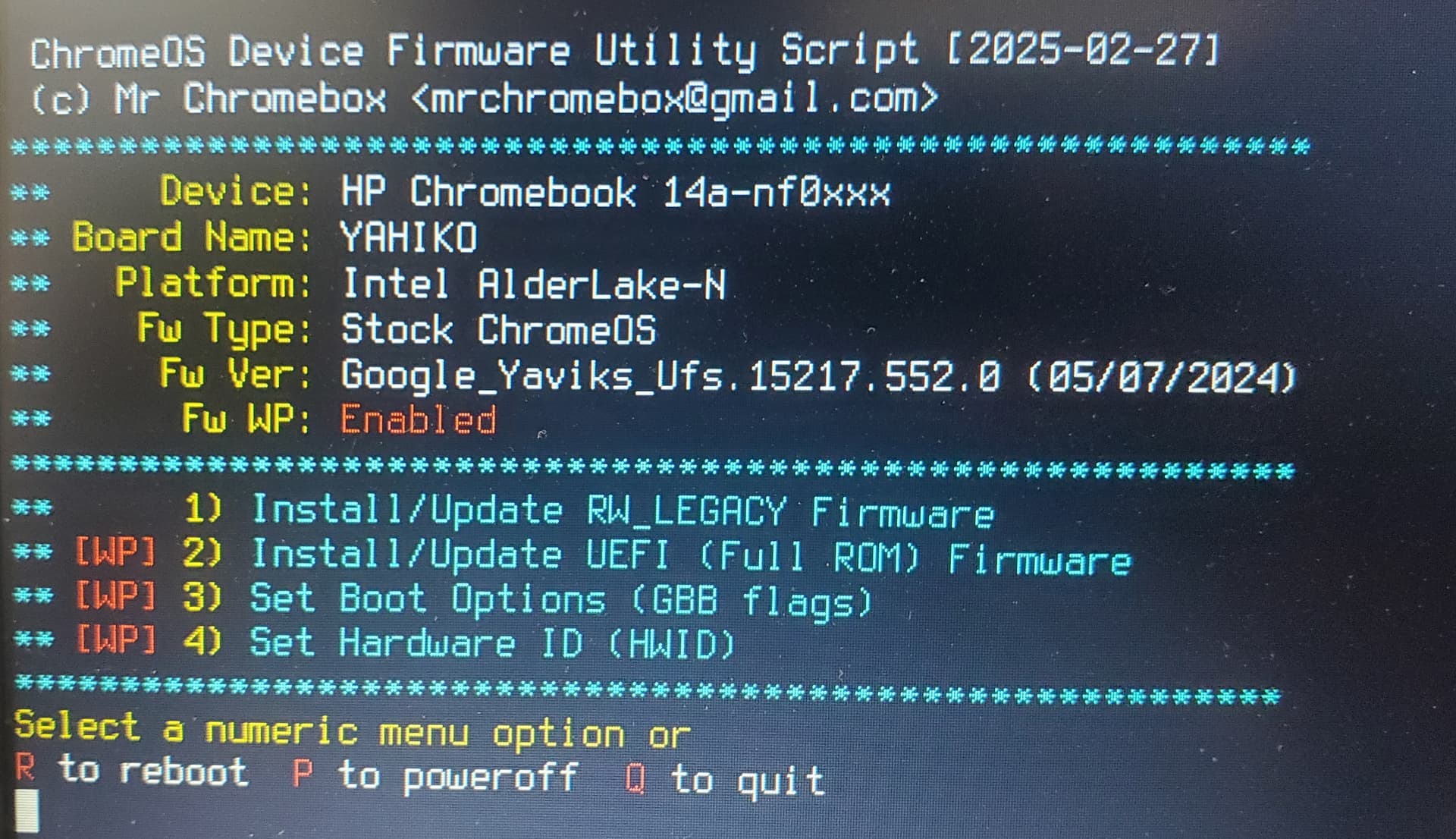
- I have run the script.
But, it still states that WP is Enabled.
Things I have done:
But, it still states that WP is Enabled.
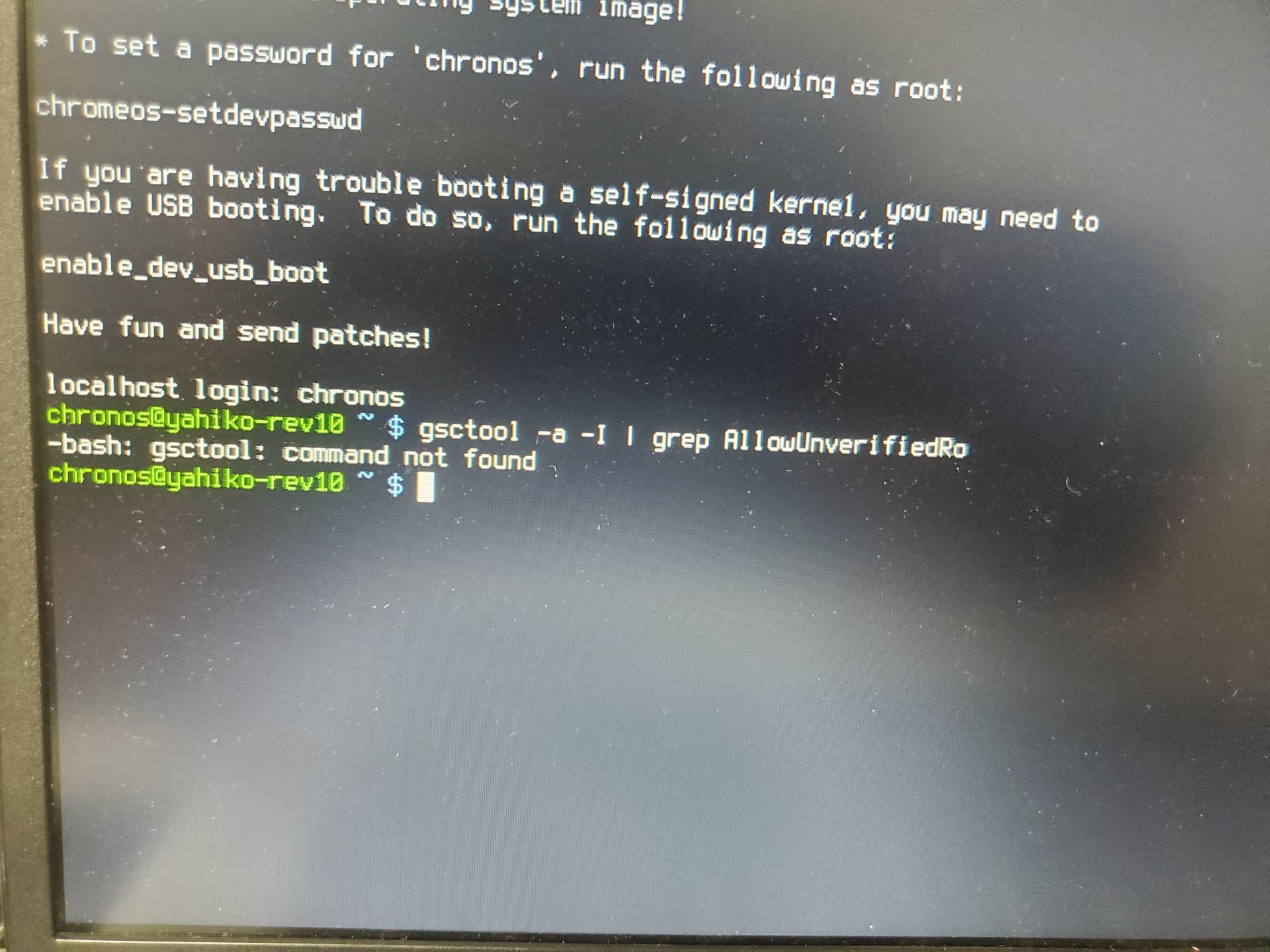
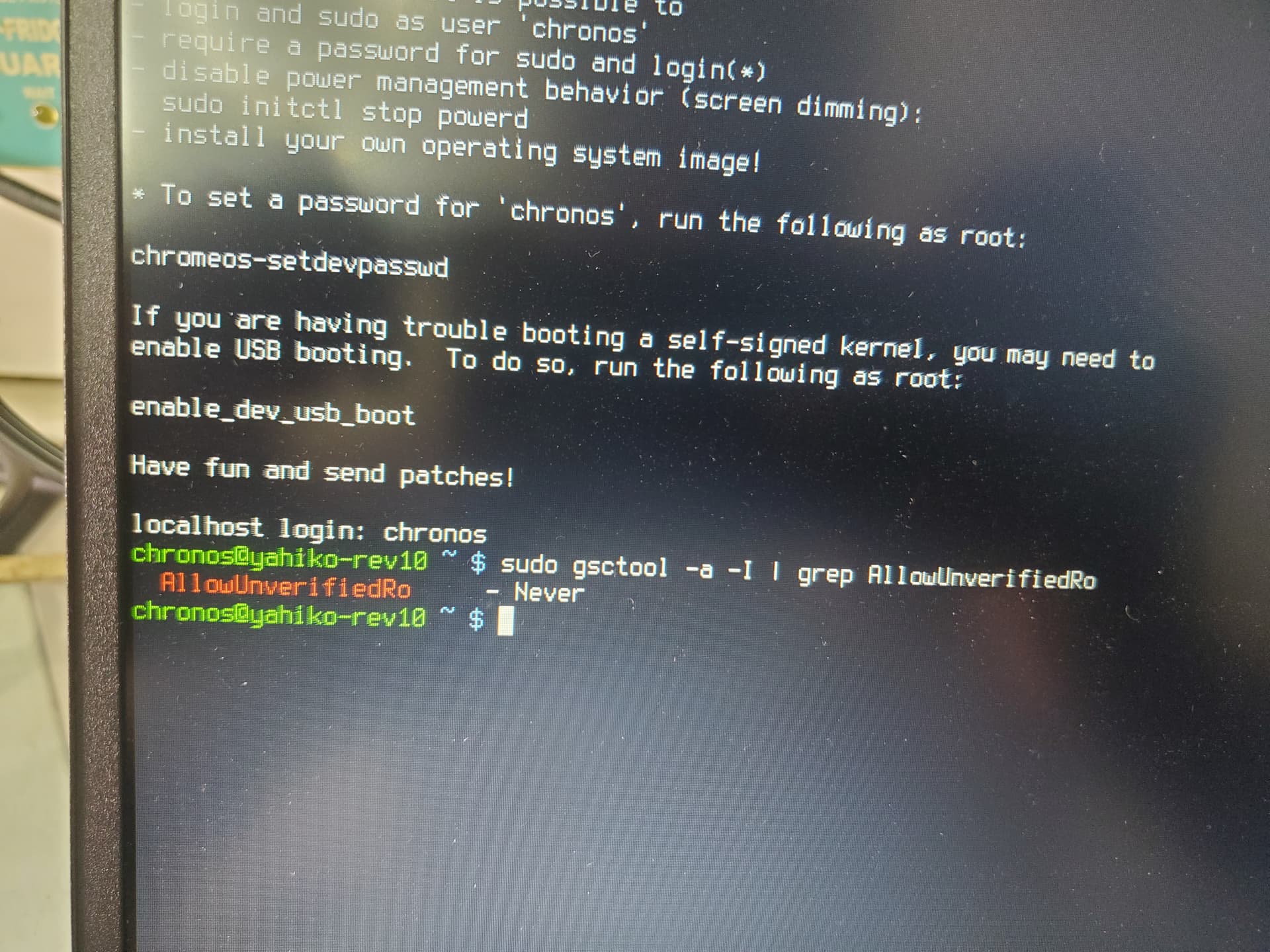
What does it say if you run gsctool -a -I | grep AllowUnverifiedRo
sudo gsctool -a -I | grep AllowUnverifiedRo
that won’t affect the WP status reporting
So, what else do I do sir?
As far as why WP isn’t disabled - I’m not sure, maybe just try connecting those two points with a bead of solder rather than that long wire and see if it works.
But also, it appears your device is Ti50 and requires extra steps to proceed.
See here: Disabling Firmware Write Protection | MrChromebox.tech
disabling RO verification is only needed for the device to boot with non-stock firmware. It doesn’t affect your ability to flash said non-stock firmware.
I’m a little confused and don’t want to give people the wrong information, so can you help me better understand?
On your site in the linked guide above, it states:
If you want to flash custom firmware, you must use the CCD method above to disable firmware write protection, regardless if the device supports disablement via battery disconnect or a jumper as well.
Does this mean the user above needs to disable HWWP with CCD since their device has Ti50/AP RO Firmware verification?
Then above, you said:
disabling RO verification is only needed for the device to boot with non-stock firmware. It doesn’t affect your ability to flash said non-stock firmware.
And your site says:
If your device has a Ti50 and you don’t disable RO verification, flashing full rom will (temporarily) brick the device - see recovery info below.
Do the two statements above mean you can flash the firmware with RO verification enabled, but it won’t boot after? And if so, do you just need to recover it with the recovery steps on your site (power + f2 f2)?
I’ll reword that section. You have to unlock the CCD to disable RO verification, you don’t have to use CCD to disable WP.
that’s correct
Thank you for clarifying!
Hey! So, you suceed or not? I have yahiko motherboard in my HP Chromebook 14a nf0131wm
I didn’t succeed, not enough information about how to disable write protection.
SuzyQ is really the only option
For future visitors, even when you get WP disabled and bios flashed, speakers will be a PITA and you’ll never get the mic working.
what are you talking about? Both speakers and mic work perfectly under Ubuntu 25.10. Just needed to run WTT’s script as per the docs.
WTT’s script did not work on this board with the 3 Ubuntu derivatives that I tried. After much pain I got the speakers working reliably, but the mic was never recognized.
After your comment I thought I better try Ubuntu 25.10. First run of WTT and the speakers worked, but I was not able to get the mic recognized.
Then I looked at the other recommended distros and although not a Fedora fan, tried Ultramarine 43. After WTT first try the speakers AND mic worked! This is the first time the mic worked after attempts with 6 distros.
I’m thinking now that the early attempts with my preferred OS’s failed because they’re based on Ubuntu 24.x. In case anyone’s interested it’s Zorin 18, Mint Cinnamon 22.2 & 22.3, PopOS & Ubuntu 25.10 that didn’t work.
I’m interested to know if you really had Ubuntu 25.10 work with WTT on a YAHIKO right out of the box. Was it an HP Chromebook 14a-nfxxxxxx? Cause it didn’t work for me (or OP apparently).