Post:
Good news! 
You can now access the CR50 CCD shell directly from Windows, no Linux VM, no kernel drivers, no COM-port hacks required.
 Download (v1.1):
 https://github.com/vibecoder2001/Cr50Shell/releases/tag/v1.1
This release lets Windows talk to CR50 using WinUSB, making CCD access possible entirely from user mode.
 What this does
 Access the CR50 CCD Shell on Windows
No kernel drivers
No firmware changes
No serial adapters
Works with both CLI and GUI tools
If you’re used to CR50 “just working” on Linux, this brings that experience to Windows 

 .
.
 What’s included
The release provides ready-to-run executables for:
-
Windows x64
-
Windows ARM64
Just download the correct .exe for your system and run it
(you’ll need the .NET 8 runtime, which Windows usually installs automatically).
 One-time setup: Attach WinUSB (required)
Windows needs to be told how to talk to CR50. This is a one-time step.
Tool needed
 Zadig
Zadig
https://zadig.akeo.ie/
Step-by-step
 Plug in your device with CCD enabled
 Open Zadig
 In the menu, enable:
Options → List All Devices
 Select the device labeled:
- Shell
That’s it
 Important:
-
Only replace the driver for the Shell interface
-
Do not change other interfaces unless you know what they do
 Using the tools
 GUI
GUI
-
Pick the detected device
-
Click Connect
-
Type commands directly into the shell window
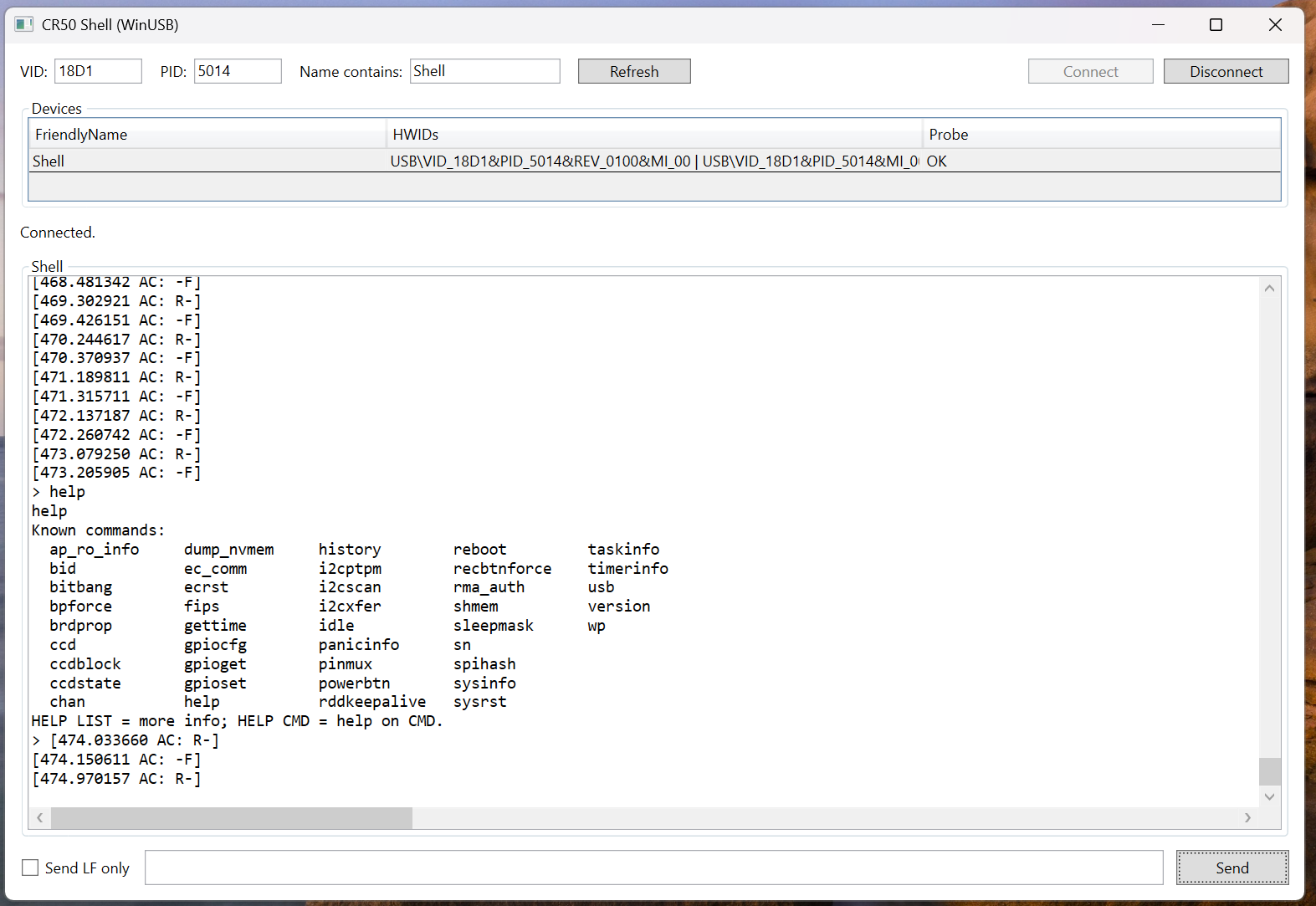
CLI
-
Launch from a terminal
-
Connects directly to the CR50 shell
-
Useful for scripting or quick access
Both tools behave the same — just different interfaces.
 Notes
Notes
-
CCD must already be enabled
-
This uses standard Windows USB APIs (WinUSB)
-
If the device doesn’t show up, double-check the Zadig step
 Why this matters
Until now, Windows users needed Linux or workarounds to talk to CR50.
This makes Windows a first-class option for CR50 CCD access.
If you’ve been waiting to do this without rebooting into Linux — this is it  .
.
If you run into issues or have feature requests, feel free to ask. Happy hacking! 
